Unable to compile custom assembly error

As prompted when logging into my desktop app, I tried to move off of one drive. Now my app is completely messed up. I have reinstalled several times (I am no longer connected to one drive). I get around 40 error messages I need to click through before I’m able to log on. Now I can not add on any more scripts, until the other program errors are fixed. I am not a programmer. Please advise.
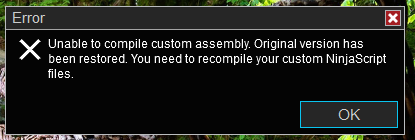
Do you have a backup from your customer indicators?

If Yes, first try to compile all the scripts again. To do so:
Go to NEW
Select NI JA SCRIPT EDITOR
Select one of your custom scripts
It will open and you will see code
Go to the symbols above and find COMPILE; click on it and see if you get still errors. If not, the problem might be solved.
If there are still errors, delete all the customer indicators from NT8, and compile again. Normally the error comes from your customer indicators. As they are not there anymore, your error should be gone.
If the problem is still there, the only thing you can do is install NT8 again, but don’t install customer indicators.
What to do before reinstalling NT8:
If you’re experiencing persistent issues with NinjaTrader 8, a full reinstall can help resolve software corruption, glitches, or update-related problems. This guide walks you through safely reinstalling NinjaTrader 8 without losing your strategies, templates, or workspaces.
Install NT in the maps and locations that they propose, it will create less problems later.

Step 1: Close All Applications

  • Make sure NinjaTrader and any related trading applications are fully closed.

Step 2: Backup Your Configuration

  • Go to your Documents folder.
  • Locate the folder named NinjaTrader 8.
  • Right-click and rename it to:NinjaTrader 8 OLD
  • :warning: Important: Do not delete this folder — it contains your workspaces, strategies, and templates.

Step 3: Uninstall NinjaTrader

  • Open Control Panel > Programs and Features.
  • Locate NinjaTrader 8, click it, and select Uninstall.

Step 4: Remove Program Files

  • Navigate to: C:\Program Files (x86)
  • If a folder named NinjaTrader 8 exists, delete it.

Step 5: Reboot Your VPS

  • Restart your VPS to ensure all files are cleared from memory.

Step 6: Reinstall NinjaTrader

  • Download the latest version from:
    :link: https://ninjatrader.com/GetStarted
  • Right-click the installer and choose Run as Administrator.
  • Select Complete installation when prompted.

Step 7: Restore Your Settings

  • Return to your Documents folder.
  • You’ll now see two folders:
    • NinjaTrader 8 (newly created by the installer)
    • NinjaTrader 8 OLD (your original settings)
  • Rename the new folder to: NinjaTrader 8 Fresh
  • Rename NinjaTrader 8 OLD back to: NinjaTrader 8

:white_check_mark: Your full NinjaTrader environment — including all strategies, templates, and workspaces — is now restored.

Watch if you can make charts with the standard indicators that are included in NT8. Normally that would work.