When I draw a label (on the price scale from OnRender) it’s underneath all NT price markers. Is it possible to render it on top of everything else?
From the code snippet I use it’s not possible, it appears above the prices on the scale but below the price markers. However, there must be a way because there’s a developer who has either removed the NT price markers or drawn on top of them. I forgot his name though.
Regretfully, I think Several is right. I don’t believe there’s a supported way to do this. From what I’ve tested, NinjaTrader draws its price markers after OnRender, so anything drawn there lands underneath them.
I also tried a plot set to PlotStyle.PriceBox (it draws only the marker, no line), hoping a real price marker would get a better spot. The chart’s own last-price marker still drew on top of it.
As for the developer Several mentioned, my guess is they hid NinjaTrader’s markers and drew their own. That works if you control every marker on the chart, but not if other indicators’ markers need to stay. Drawing over them would take a hack outside OnRender, and I wouldn’t recommend it.
Please Be Safe in this Crazy World!

It’s the guy who wrote the software chart enhancer, he has complete custom price markers and it looks like he removed the NT ones. Unsure how.
They are likely manipulating WPF, if that is the case, I rather have stable chart and overlapping labels. If there were support I would have requested a feature to hide price axis scale.
No WPF needed. Hide NinjaTrader’s price markers, then draw your own.
Your script’s Plot/Line markers, one line in State.SetDefaults:
PaintPriceMarkers = false;
The data series price marker, one line in State.DataLoaded:
if (ChartBars != null) ChartBars.Properties.PaintPriceMarker = false;
You can also turn this one off by hand in the Data Series window (Price marker).
Then in OnRender, read your plot’s last value and draw your own marker on the price scale.
Here’s a small working sample indicator script that shows how this could be accomplished.
using System;
using System.Windows.Media;
using NinjaTrader.Gui;
using NinjaTrader.Gui.Chart;
using NinjaTrader.NinjaScript;

// HTPriceMarkerExample
// Draws custom price markers that sit on top, because NinjaTrader's own markers are turned off.
//   1. This script's plot marker is turned off in SetDefaults.
//   2. The data series price marker is turned off in DataLoaded and put back in Terminated.
//   3. OnRender draws our own markers on the price scale: gold for the last close, the plot's color for the plot.
// Other indicators' price markers still draw over ours; turn those off in their own settings.
// Assumes the price scale is on the right.

namespace NinjaTrader.NinjaScript.Indicators
{
	public class HTPriceMarkerExample : Indicator
	{
		private bool changedSeriesMarker;	// true once we turned the data series marker off
		private bool oldSeriesMarker;		// what the data series marker was before we touched it

		private SharpDX.DirectWrite.TextFormat	textFormat;	// made once, on the first render
		private SharpDX.Direct2D1.Brush			goldDX;		// close marker background
		private SharpDX.Direct2D1.Brush			blackDX;	// marker text

		protected override void OnStateChange()
		{
			if (State == State.SetDefaults)
			{
				Name				= "HTPriceMarkerExample";
				Description			= "Custom price markers drawn on top, with NinjaTrader's own markers turned off.";
				IsOverlay			= true;
				Calculate			= Calculate.OnPriceChange;
				PaintPriceMarkers	= false;	// 1. this script's plot markers off
				AddPlot(Brushes.DodgerBlue, "Line");
			}
			else if (State == State.DataLoaded)
			{
				// 2. Data series price marker off. ChartBars is null when the script is not on a chart
				// (Market Analyzer, Strategy Analyzer, a strategy started from the Strategies tab), so check it first.
				// Same as unticking "Price marker" in the Data Series window.
				if (ChartBars != null)
				{
					oldSeriesMarker = ChartBars.Properties.PaintPriceMarker;
					ChartBars.Properties.PaintPriceMarker = false;
					changedSeriesMarker = true;
				}
			}
			else if (State == State.Terminated)
			{
				// Removing the indicator puts the data series marker back the way the trader had it.
				// Without this, the marker stays off on the chart after the indicator is gone.
				// NinjaTrader also sends Terminated to copies that never reached DataLoaded
				// (the settings window makes some), so only undo what this copy changed.
				if (changedSeriesMarker && ChartBars != null)
					ChartBars.Properties.PaintPriceMarker = oldSeriesMarker;

				if (textFormat != null)	{ textFormat.Dispose();	textFormat = null; }
				if (goldDX != null)		{ goldDX.Dispose();		goldDX = null; }
				if (blackDX != null)	{ blackDX.Dispose();	blackDX = null; }
			}
		}

		protected override void OnBarUpdate()
		{
			// Any plot works; this one sits 6 ticks above the close so both markers are easy to see.
			Value[0] = Close[0] + 6 * TickSize;
		}

		// DirectX brushes belong to one render target, so make them here and remake them when it changes.
		// The plot's brush needs none of this: NinjaTrader keeps Plots[0].BrushDX ready for us.
		public override void OnRenderTargetChanged()
		{
			if (goldDX != null)		goldDX.Dispose();
			if (blackDX != null)	blackDX.Dispose();
			goldDX	= RenderTarget == null ? null : Brushes.Gold.ToDxBrush(RenderTarget);
			blackDX	= RenderTarget == null ? null : Brushes.Black.ToDxBrush(RenderTarget);
		}

		protected override void OnRender(ChartControl chartControl, ChartScale chartScale)
		{
			base.OnRender(chartControl, chartScale);	// draws the plot line itself
			if (ChartBars == null || ChartBars.ToIndex < 0 || goldDX == null) return;

			// The chart's label font, made once. Not tied to the render target, so it lives until Terminated.
			if (textFormat == null)
				textFormat = chartControl.Properties.LabelFont.ToDirectWriteTextFormat();

			int last = ChartBars.ToIndex;	// last bar on screen (scroll back and the markers follow)

			// 3. NinjaTrader clips indicator drawing to the chart panel, so nothing reaches the
			// price scale. Lift the clip, draw, then put the same clip back for whatever draws next.
			RenderTarget.PopAxisAlignedClip();
			try
			{
				DrawMarker(chartScale, Bars.GetClose(last), goldDX);
				if (Value.IsValidDataPointAt(last))
					DrawMarker(chartScale, Value.GetValueAt(last), Plots[0].BrushDX);
			}
			finally
			{
				RenderTarget.PushAxisAlignedClip(new SharpDX.RectangleF(ChartPanel.X, ChartPanel.Y, ChartPanel.W, ChartPanel.H), SharpDX.Direct2D1.AntialiasMode.Aliased);
			}
		}

		// One marker: a filled box on the price scale with the price in it, centered on the price.
		private void DrawMarker(ChartScale chartScale, double price, SharpDX.Direct2D1.Brush background)
		{
			string text	= Instrument.MasterInstrument.FormatPrice(price);
			float x		= ChartPanel.X + ChartPanel.W;	// left edge of the right price scale
			float y		= chartScale.GetYByValue(price);

			// The layout holds the price text, which changes, so it is the one thing made per render.
			using (SharpDX.DirectWrite.TextLayout layout = new SharpDX.DirectWrite.TextLayout(Core.Globals.DirectWriteFactory, text, textFormat, 500, 100))
			{
				float w = layout.Metrics.Width + 8;		// 4 px padding each side
				float h = layout.Metrics.Height + 4;	// 2 px padding top and bottom
				RenderTarget.FillRectangle(new SharpDX.RectangleF(x, y - h / 2, w, h), background);
				RenderTarget.DrawTextLayout(new SharpDX.Vector2(x + 4, y - h / 2 + 2), layout, blackDX);
			}
		}
	}
}
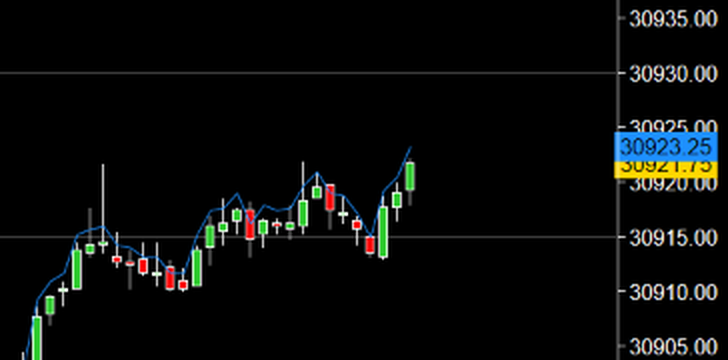
With a little ingenuity, you could take this same idea further on the whole chart.
Loop through every indicator applied to the chart and turn off its price markers.
Then decide for yourself which should sit on top, and draw them however you want.
Please Be Safe in this Crazy World!
3 Likes