Assuming that your strategies will actually compile in the new version, and you placed them in the strategies folder, you still may need to compile your project one time for them to show up in the “NinjaScript Explorer” pane on the right side of the NinjaScript Editor.
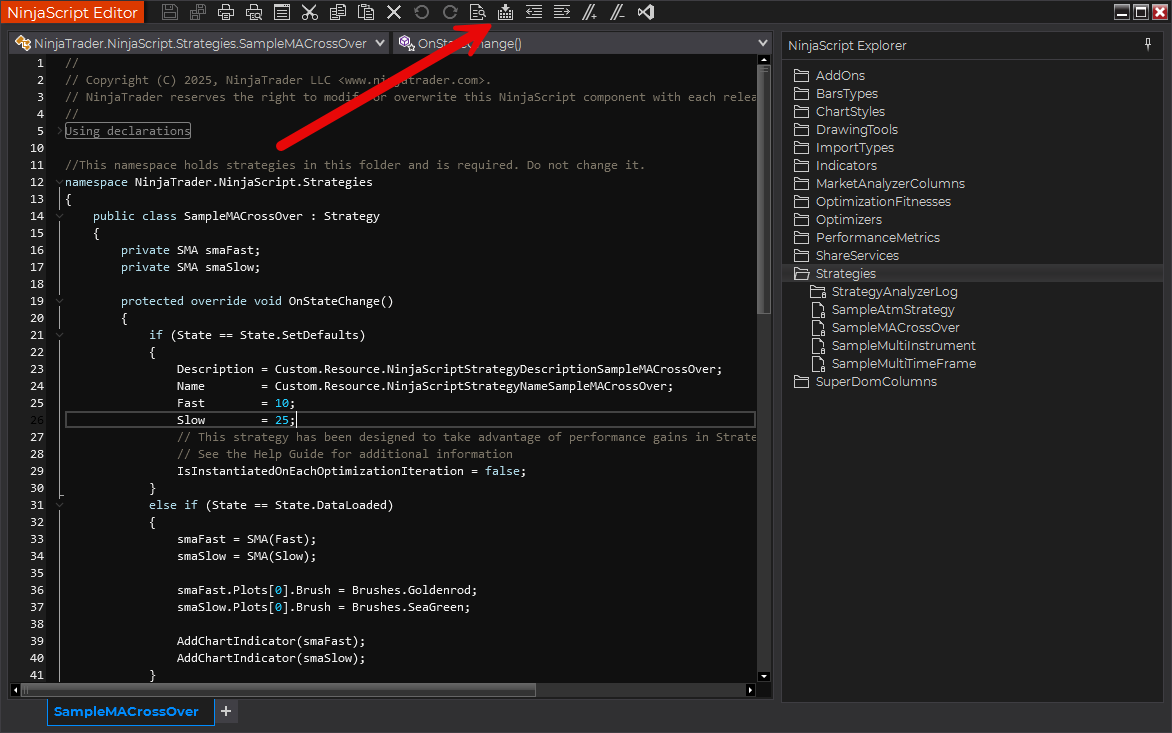
To compile your strategies, press the “Compile” button in the NinjaScript Editor’s main toolbar:
If your strategies do not compile, you will need to fix the compiler errors that will appear at the bottom of the NinjaScript Editor.
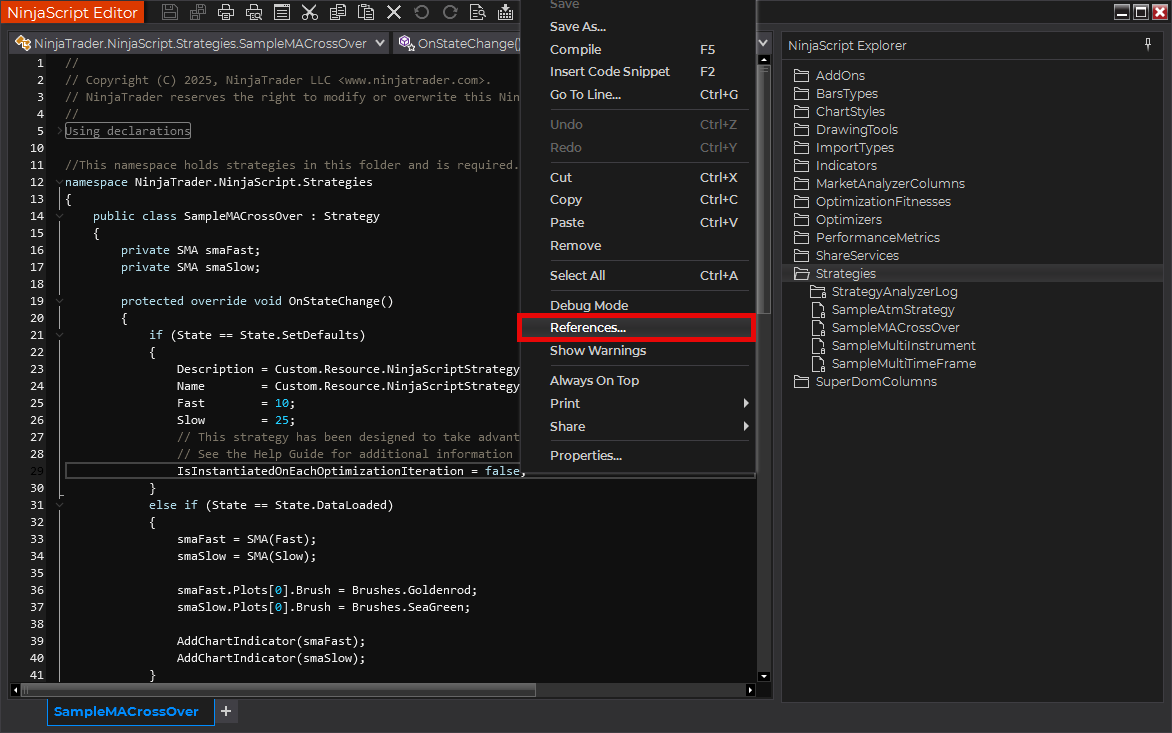
If any of your strategies rely on dlls that do not come built into NinjaTrader, or if any of your strategies are not in plain text NinjaScript code but in a dll file instead, you might need to add references to the dlls manually from the NinjaScript Editor by right clicking on the main pane of the NinjScript Editor (the pane where the code goes) and selecting “References…”
Thank You. I’ve tried the compile method, but none of the strategies I put in the Strategies folder show up.
I created a blank strategy and posted the code in the blank strategy and compiled. During the compile Ninjatrader hung. I had to stop Ninjatrader from the Task Manager.
Now when I launch NT, it shows the login dialog, but after I login successfully, it doesn’t proceed to the Control Center and after a minute it stops (I don’t see it in Task Manager anymore).
On the other hand the Ninjatrader Safe Mode launches properly and shows the Control Center. I can create a chart and and the system default strategies.
However, I can’t compile my strategy. It appears in the Ninjascript Explorer, and I can open it in the editor but the compile button is disabled. Right click on the editor doesn’t show Compile either.
I have tried Repair and Reinstalled multiple times, all have the same problem. I also tried restarting Windows 11, same problem.
Interesting. I don’t know what else you could try, sorry. I recommend contacting NinjaTrader support about this. Or maybe someone else in this user-supported forum knows how to fix your strange issue. I wish to the very best with getting this figured out. Sorry that I don’t have any other ideas for you.
When NT hangs is it using a lot of cpu in the task manager, or is it sitting idle?
Trace files exist here: \Documents\NinjaTrader 8\trace
Log files only show what you can see in the NT log window, but they are locate here: \Documents\NinjaTrader 8\trace
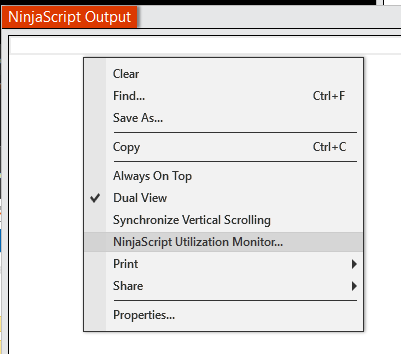
There is a utilization monitor built into the output window that might show some useful info. Just right click on the output window and pick the utilization monitor to start it.
Also, if you have Visual Studio 2022 you can attach to the NT process and force a breakpoint. You might be able to get some idea where it’s stuck with the call stack.
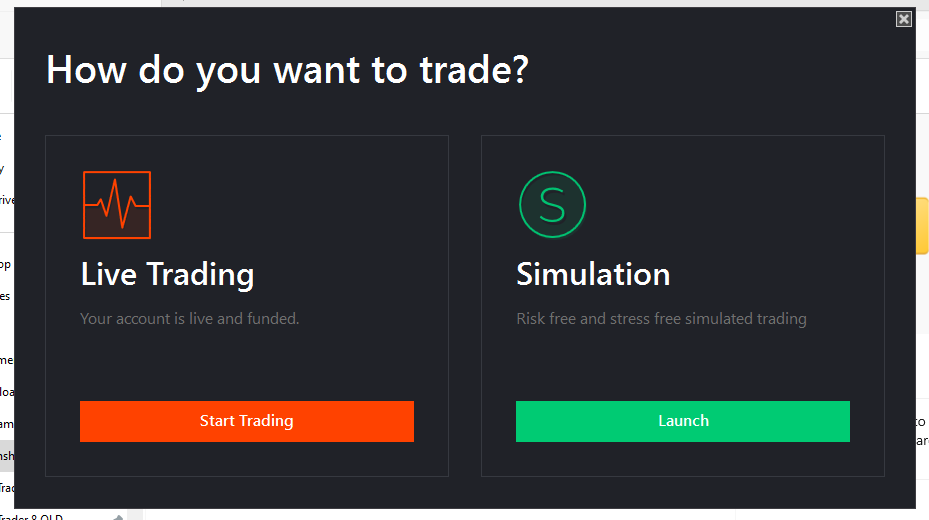
Somehow I’ve managed to get NT desktop working … but when I successfully log in, it shows a “Live or Simulation” window to chose from. I attached the screenshot here.
I’ve resolved the hang issue. The cause was a recursive call.
I don’t know why NT fresh install would also hang.
In any case i managed to get a fresh install working and found the recursive call, removed it and NT stopped hanging. I still don’t know how i got NT working again.
Following up. Even when reinstalling NT it would hang also. The reason is that the strategies are not removed when reinstalling.
NT apparently does an initial run of strategies on startup, it hung when it ran the strategy with a recursive call. The solution was to rename the NT folder to something else and then do a fresh install.