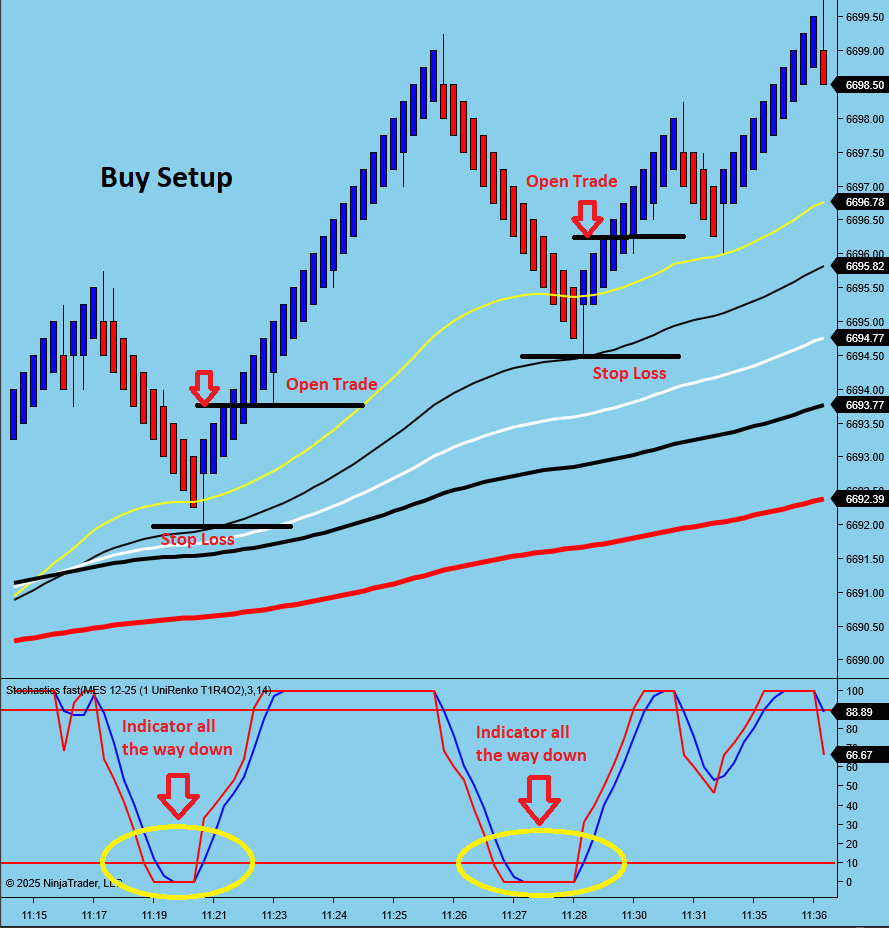
With MT4 you would call what I want to make an “Expert Adviser” , not sure what its called in the Ninja Trader world . I need something that when I see a trade setup happening I can enable it on the chart quickly and it will open my trade “when the criteria is filled”, which is a basic (indicator all the way up for Sell , All the way down for buy , after 3 Renko candles reverse direction …open the trade . Heres a picture of the setup . Very basic . What is the easiest way to enable it on a chart ?? Is it called an ATM strategy ?? I want like one button pressed to enable it because the market moves very fast at times . Thank for your help
You will need to code your own strategy or use the strategy builder (I’ve never used it).
Hi @Mr.Hamster,
With MT4 you would call what I want to make an “Expert Adviser” , not sure what its called in the Ninja Trader world .
In the NinjaTrader world it is called a “strategy” or a “NinjaScript strategy”.
I need something that when I see a trade setup happening I can enable it on the chart quickly and it will open my trade “when the criteria is filled”, which is a basic (indicator all the way up for Sell , All the way down for buy , after 3 Renko candles reverse direction …open the trade . Heres a picture of the setup . Very basic . What is the easiest way to enable it on a chart ?? Is it called an ATM strategy ?? I want like one button pressed to enable it because the market moves very fast at times . Thank for your help
If you want to build this quickly using point-and-click and without any code, you can do so by following these steps:
- Download the no-code strategy builder for NinjaTrader from Quagensia ( Point-and-Click Strategy Builder for NinjaTrader® – Quagensia ).
- Email us your NinjaTrader Machine ID to get a VIP free trial license key that includes being able to add buttons, text boxes, and check boxes to a chart in NinjaTrader ( How to Add Buttons, Check Boxes, Text Boxes, and Labels to a NinjaTrader® Chart Using Control Panels (N Edition Only) – Point-and-Click Strategy Builder for NinjaTrader® – Quagensia )
- Once we set you up and email you back that your licenses are set up, close and reopen NinjaTrader for the “Control Panels” license to take effect and enter the VIP free trial license key we email you into Quagensia N Edition.
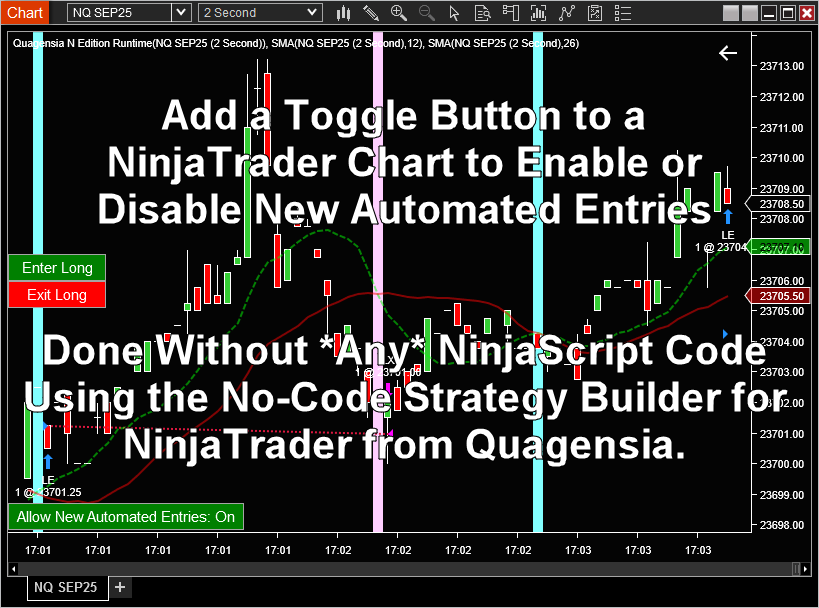
- In Quagensia N Edition make a copy of the no-code strategy for NinjaTrader named “Add a Toggle Button to a NinjaTrader Chart to Enable or Disable New Automated Entries”. You can learn more about this strategy on its strategy home page at Add a Toggle Button to a NinjaTrader Chart to Enable or Disable New Automated Entries (Point-and-Click NinjaTrader® Strategy) – Quagensia. Here is how it looks when applied to a NinjaTrader chart:
- Replace the default example entry condition with your own as you described in your post. If your indicator isn’t one of the indicators built into NinjaTrader by default but you have the third-party or custom NinjaScript indicator in your installation of NinjaTrader, you can probably import it and the large majority of the rest of your NinjaScript indicators into Quagensia N Edition like this: How to Import (or Re-Import) Your Third-Party NinjaTrader® Indicators Into Quagensia N Edition By Applying a No-Code Strategy to a Chart in NinjaTrader® – Point-and-Click Strategy Builder for NinjaTrader® – Quagensia
- Instead of using the default “Set Stop Loss” and “Set Profit Target” logic in this strategy’s “Money Management” section, delete them from that section and add a no-code “Set Stop Loss” function directly above the no-code “Enter a Long Position Using A Market Order” in the “When Bar Updates” section and change the input parameters of the no-code “Set Stop Loss” function to instead create a stop loss that is dynamically calculated.
- With the NinjaScript Editor open, generate the NinjaScript code for this no-code strategy and send it to NinjaTrader by pressing the appropriate button. It should compile automatically and you will here the sound of success if your sound is turned up. Here is a full Quagensia N Edition tutorial that includes sending a strategy to NinjaTrader and the basics of using Quagensia N Edition. Create NinjaTrader® Strategies Using Point-&-Click with Quagensia N Edition – Full Tutorial – Point-and-Click Strategy Builder for NinjaTrader® – Quagensia
- Apply the strategy to a chart (obviously in sim to test at first, either on a live data feed in a sim account or in Market Replay), but with the “Allow New Automated Entries On Strategy Start?” input parameter set to False by unchecking its check box in the NinjaTrader user interface so that the automated entry logic won’t execute until you press the red toggle button on the NinjaTrader chart that reads “Allow New Automated Entries: Off”.
- At this point, your strategy is enabled on the chart but it will not place any entry orders based on your automated entry conditions you added in the “When Bar Updates” section until you press the toggle button, but it can still do everything else that strategies can do, like manage any preexisting open positions and exit them based on its logic, do its calculations and set variables, draw on the chart, plot its indicators on the chart, write to the NinjaScript Output window, write to a file, and do lots of other things… just not submit orders. This is a major benefit of enabling your strategy on a NinjaTrader chart but disabling actual entry order submission until you tell it otherwise.
- When you see a trade setup happening, press the red “Allow New Automated Entries: Off” button. When you do this, your strategy will allow automated entry orders to be submitted when your custom set of entry conditions evaluate to True. From your description, your entry conditions sound very easy to create without code. The button will turn green and read “Allow New Automated Entries: On”.
- If you want to disable automated entries again but want to leave your strategy enabled on a chart so it can continue to do everything else it does, just press the toggle button again to disable new entries. You can even do this while you have a position, and your exit logic will continue to function properly.
- If you have any questions please don’t hesitate to reach out! I do Google Meet screen sharing sessions called “VIP demos”, and I could literally talk you through building your entire strategy without code in Quagensia N Edition in real-time if you would like.
Best regards,
Brook from Quagensia
2 Likes
Thank you for describing all that ! That is some really cool software . I bookmarked it and if I think up some complicated strategy I will use it . Looks like its a monthly subscription . For what I want to do right now I can get this programed for pretty cheap as a one time fee since its so simple . Thank you for sharing ,
1 Like
You are most welcome. Thank you for your kind words and for bookmarking the post. I understand your logic regarding getting a one-off simple strategy programmed for relatively cheap but like you said… if you think up a complicated strategy that either would be expensive to hire a contract coder to build, if you start thinking of lots of strategies that are cheap individually to get coded but that end up getting expensive when you end up paying for lots of strategies and multiple revisions of some of them, then thank you for keeping us in mind!
Also, if you simply don’t want a contract programmer to learn your best ideas and possibly intentionally or unintentionally share them with their other contract programming clients, i.e. if you want to keep your trade secrets to yourself, building them yourself in the no-code strategy builder for NinjaTrader for Quagensia is a good option since you can ask how to do a general task in our Discord community without showing the whole community your entire strategy, and because with Quagensia your trading strategies are private to you since they only exist on your machine and wherever else you choose to back up or copy your Quagensia N Edition Strategy files.
Looks like its a monthly subscription
The price on the Quagensia website is not the price for 1 month. It is the price for 5 years, i.e. 60 months. It comes out to 0.65 USD/day or 19.83 USD/month before tax.
2 Likes