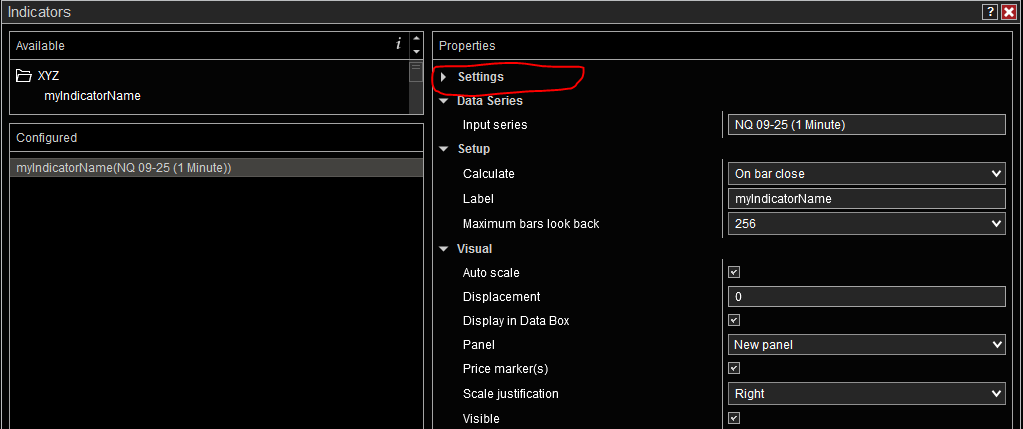
Anyone know how to have the parameter group collapsed by default?
They always open in the expanded state and need to be manually closed. When you have a lot of options it’s preferable to have them closed by default
Anyone know how to have the parameter group collapsed by default?
They always open in the expanded state and need to be manually closed. When you have a lot of options it’s preferable to have them closed by default
You can reorder parameter groups and make them expanded/collapsed by using the Gui.CategoryOrder and Gui.CategoryExpanded attributes.
https://ninjatrader.com/support/helpGuides/nt8/categoryorderattribute.htm
The second one doesn’t appear to be documented in NT documentation, but syntax is pretty straight forward.
[Gui.CategoryExpanded("Settings", true)]
Placement for both is just before the class definition.
thanks but sadly doesn’t work for me. When set to false, every time the group opens expanded. Even when added fresh.
Hmm… that’s very odd. Maybe check your syntax to make sure everything is correct and you have it placed in the right location in your code. I use this all the time and it works great.
	[Gui.CategoryOrder("Data Box", 30)]
	[Gui.CategoryExpanded("Data Box", false)]
and also tried
[Gui.CategoryOrder("Data Box", 30), Gui.CategoryExpanded("Settings", false)]
obviously the order works, but not the expanded
I normally use these like your first example above - on two separate lines.
I’ve never done the combined syntax with both on the same line.
I noticed in your example, you had mismatched groupnames (“Data Box” and “Settings”).
Just make sure they match in your actual code and they match exactly with the GroupName attribute in Properties.
Here’s a stripped down script. All group names match and are “Settings”.
This should work. I’m not sure why it isn’t working for you.
namespace NinjaTrader.NinjaScript.Indicators.XYZ
{
	[Gui.CategoryOrder("Settings", 30)]
	[Gui.CategoryExpanded("Settings", false)]

	public class myIndicatorName : Indicator
	{
		protected override void OnStateChange()
		{
		}

		protected override void OnBarUpdate()
		{
		}

		[Display(GroupName="Settings", Order=1, Name="Input1")]
		public double Input1
		{ get; set; }

		[Display(GroupName="Settings", Order=2, Name="Input2")]
		public double Input2
		{ get; set; }
	}
}
And here’s the result when I compile the above code and go to Indicator properties. Notice how “Settings” comes up closed.
I had the same problem as @several . I added the attributes but nothing changes.
Then I found this from the old forum:
It didn’t quite work for me, but got me on the right track.
Apparently, the settings in UI.xml for each ninjascript or parameter override the attribute settings. And if those settings in UI.xml were recorded before you applied your attributes you may have no choice but to edit or delete the UI.xml file to get the attributes to take effect.
I tried deleting just the one XML section mentioned in the link above (last comment), but it didn’t seem to work for me. I may have just made a mistake though.
It’s generally safe to delete UI.xml as it mostly holds either user preferences for the UI like window sizes or settings that can be easily recreated by the user or automatically recreated by NinjaTrader.
But always make a backup copy of UI.xml just in case.
Powershell can modify xml fairly easily. I use it to programmatically whack the entire “PropertyGridCategoryStates” section.
I wrote the powershell before AI was a thing, but chatgpt could probably do it for you.
Just an update on this, I found @ Steve_NinjaMastery was basically correct.
If you add the [Gui.CategoryExpanded(“Settings”, false)] property to an existing Category, it will fail because the expanded states of existing category names are stored in the UI.xml file. It will even store categories that no longer exist.
if you don’t want to delete the entire UI.xml file, you can either rename your categories to something new, or edit the UI.xml file manually. You can find the values under here if you want to edit them manually and then the collapsed state will work.
<NinjaTrader>
 <PropertyGridCategoryStates>
  <NinjaTrader.NinjaScript.Indicators.MyIndicator>
    <MyCategory>false</MyCategory> // set to false